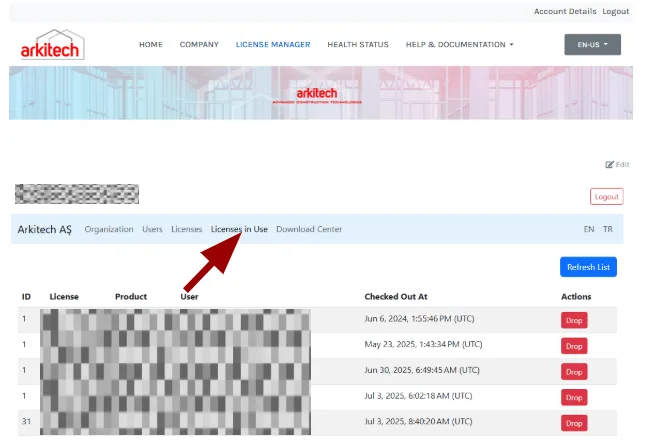
How to Use License in Designer
Log in
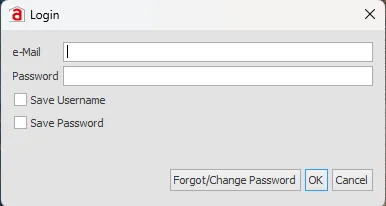
When you open the Designer application, a login form appears. Complete the required fields, then select OK. Two optional selections are available:
- Save Username — retains your username so you don’t have to re-enter it on future logins.
- Save Password — retains your password so you don’t have to re-enter it on future logins.
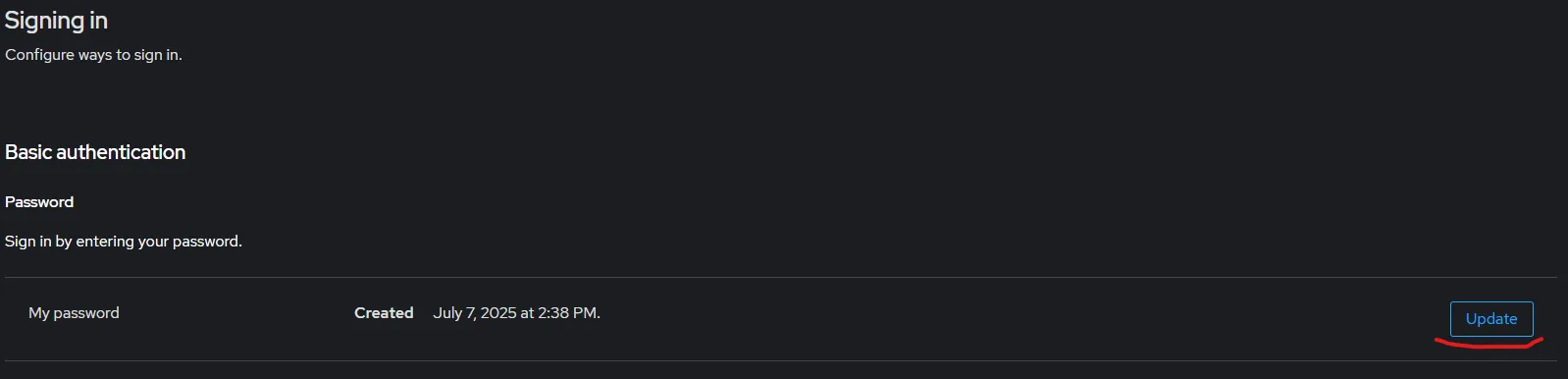
If you forget your password, use Forgot/Change Password. This opens your Arkitech account page, where you can update your password by clicking Update.
After a successful login, the program displays a page with your licenses and their subscriptions.
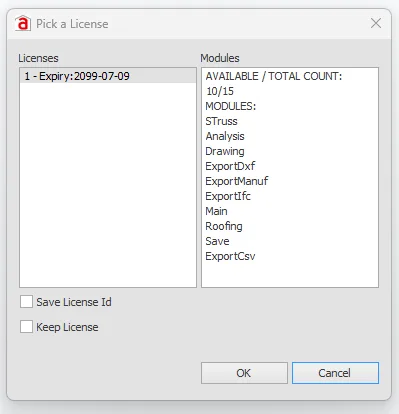
You have two options:
- Save License ID — saves the license to the current computer so you don’t need to reselect it on future entry.
- Keep License — locks the selected license to this computer, preventing other users from accessing it even when the software is closed.
Click OK to launch the program.
Closing the program
To change license options when the program closes, select Exit Program With License Options from the main menu.
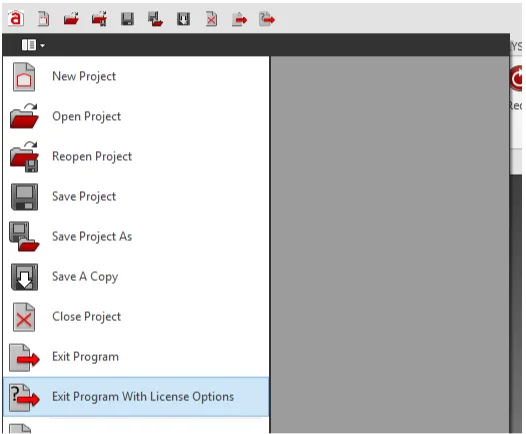
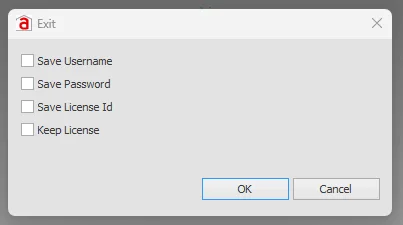
When the program closes, you can choose from:
- Save Username — retains the username.
- Save Password — retains the password.
- Save License ID — preserves the selected license (if multiple licenses exist).
- Keep License — locks the license to this computer, preventing other users from accessing it even while the software is inactive.
If the program terminates unexpectedly due to a technical issue, check your status in the Customer Portal. If the license remains assigned to the last user, a Customer Portal administrator may need to drop the license from the affected user.